If you want to watch a video version of this post, go to the below video.
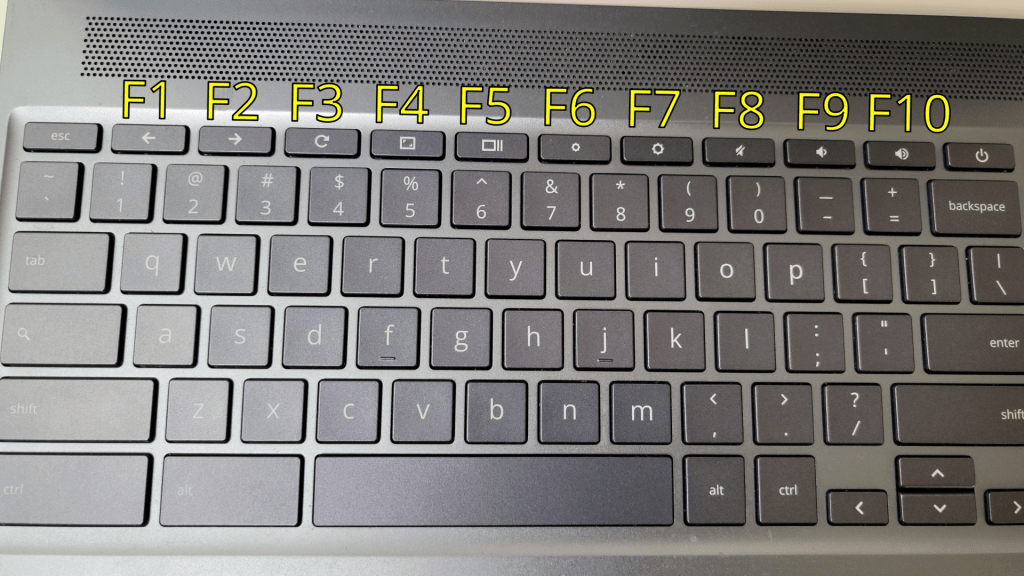
It’s easy to assume that Chromebook keyboards don’t have Function keys, the keys labeled F1, F2 F3, F4, etc. In fact, you can use function keys with a Chromebooks keyboard. This is accomplished by using the Search key as a modifier for the special Chrome OS keys.
Here is an image showing what function key each special key will act as.
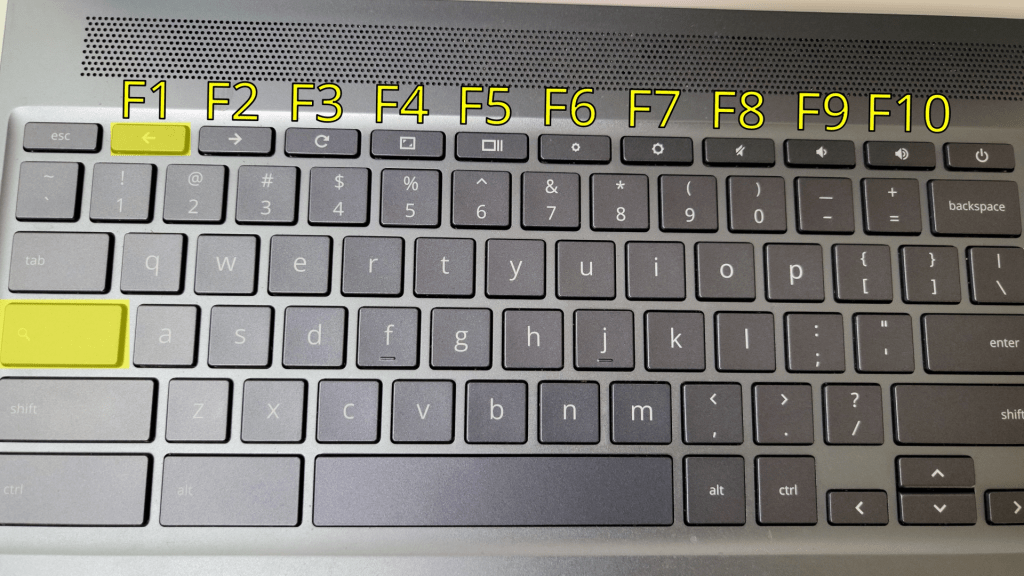
For example, if you hold down Search and the Back key, an F1 key will be executed.
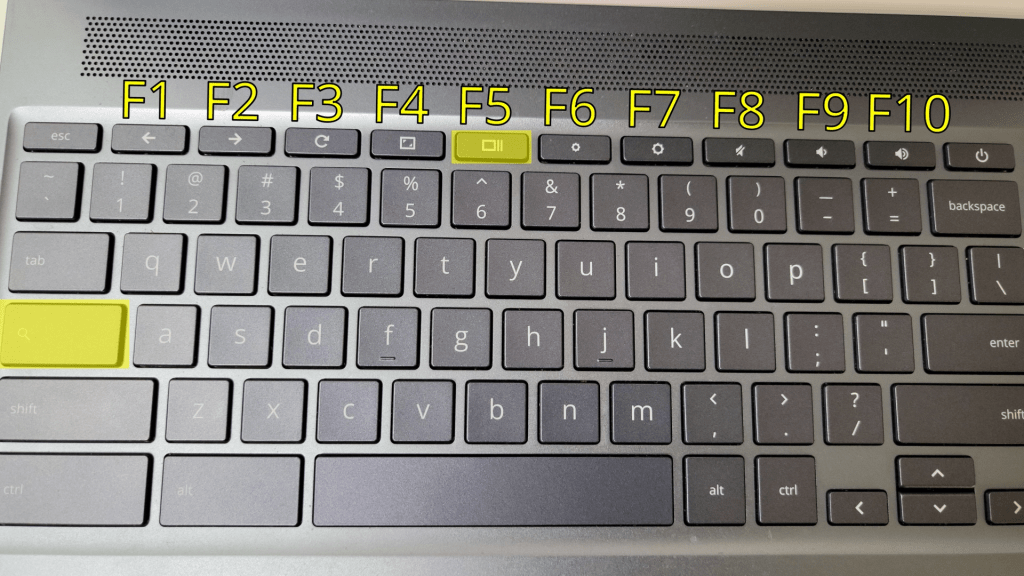
Hold down Search and the Show All Windows key, and an F5 key will be executed.
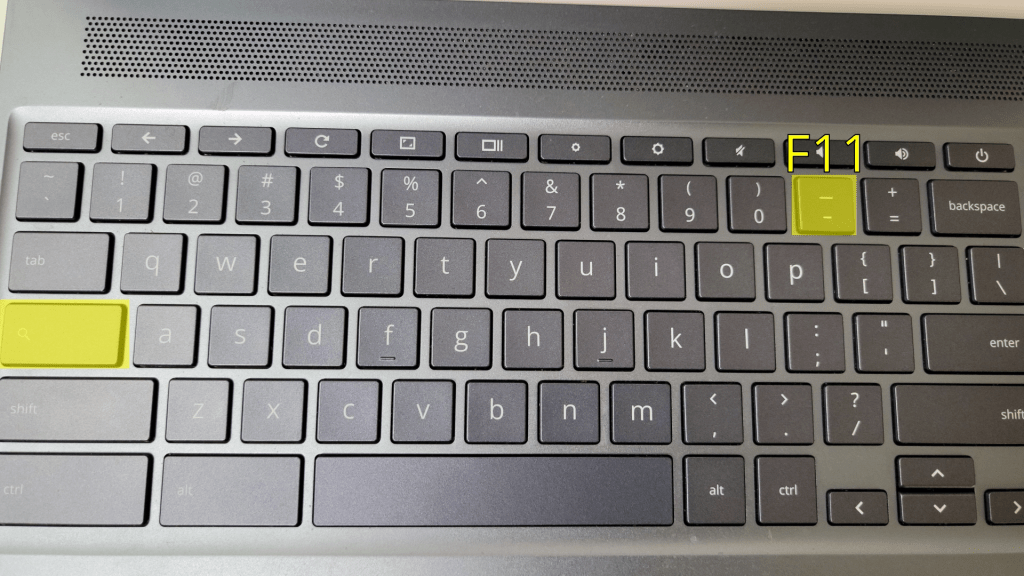
So what about F11 and F12? Those function keys can be executed by using the “-” and “+” keys. For example, holding down Search and “-“ will execute F11 and holding down Search and “+” will execute the F12 key.
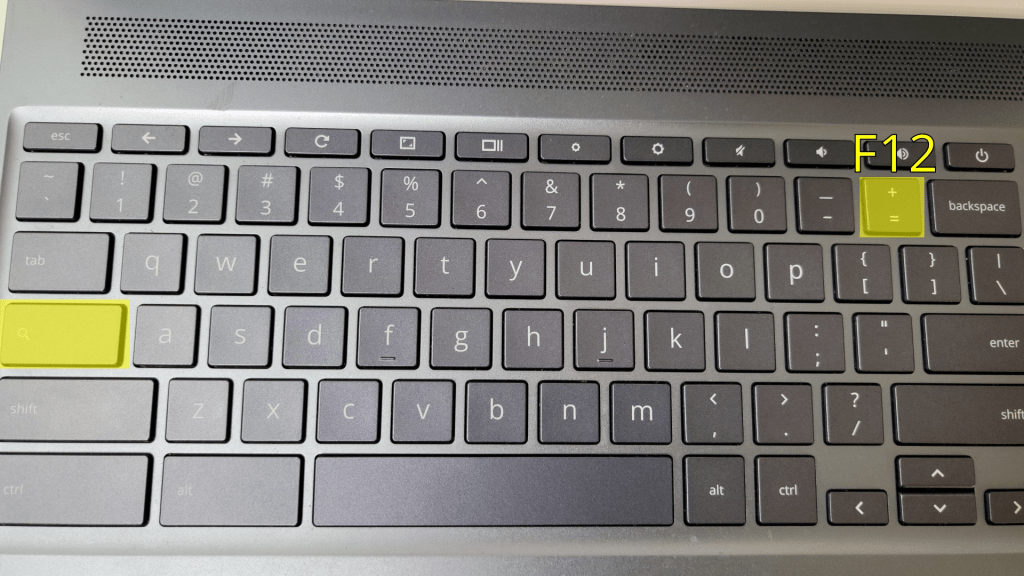
You can test function keys by visiting https://www.keyboardtester.com/.
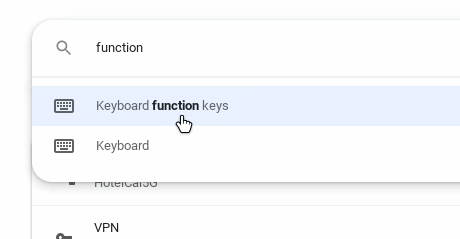
So what if you want the Chrome OS special keys to always act as Function keys without using the Search key? You can do this by going to the settings. In the settings search box, type “function.” Then click on Keyboard function keys.
Then on the settings that come up, click on Treat top-row keys as function keys.
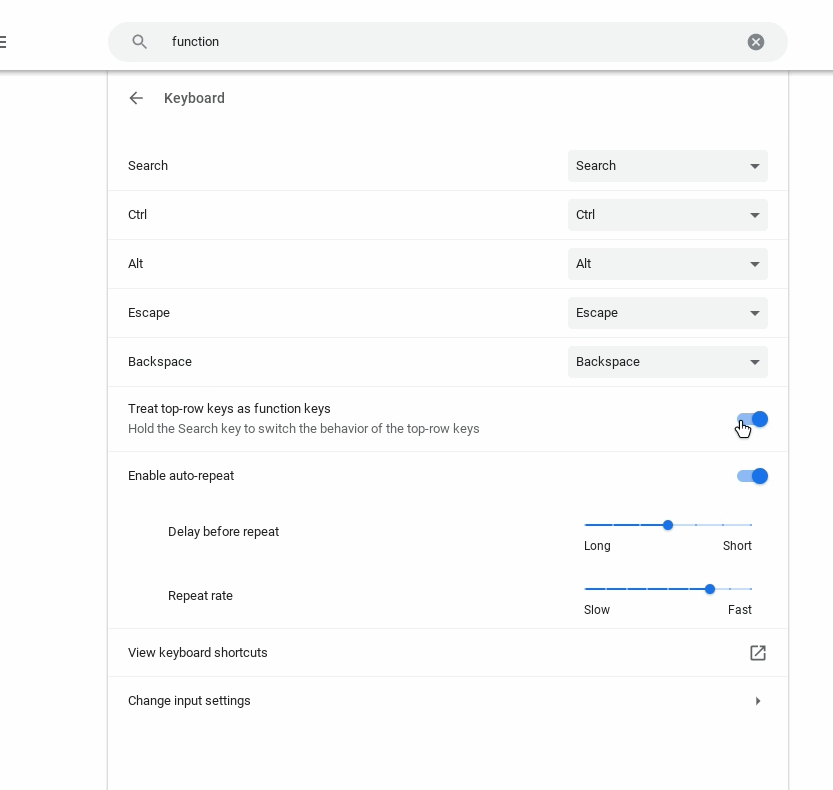
After that toggle is set, you no longer have to use the Search key to execute function keys, but you still have to use the Search key to get F11 and F12. Also, using the Search key gives back the special keys original behavior if you need to use them.

 Lu's Tech Source